A flow is a sequence of blocks that processes documents and data in Hyperscience. Each block performs one step, such as classifying pages, extracting values, or sending the output for downstream processing.
You decide which blocks a flow includes and the order in which they run. You can keep several flows in one instance, so each line of business or use case can have its own processing. This article covers the structure of flows, the ways to create and change them, and the tabs in the Flows section.
Flow structure
A flow combines blocks, settings, and a release. When a flow is live, it processes the submissions and requests sent to it.
Blocks
A block is one step of the process. Every Submission enters a flow through its Input Block. Submissions can come from the API, from uploads, or from an input connection, such as an email listener. For more information about input connections, see Managing Connections.
After the Input Block, a flow can include blocks that do the following:
Classify pages and group them into documents.
Extract fields, tables, and other data from documents.
Send work to Supervision or Quality Assurance (QA) tasks.
Look up and validate data in your systems, with blocks such as API and Database Blocks.
Apply your business logic, with blocks such as Custom Code Blocks and Routing Blocks.
Send results to downstream systems through the Output Block.
For the blocks available in your version, see Flow Blocks.
Top-level flows and subflows
A Top-Level Flow is the flow that starts processing. A Subflow is a reusable part of the process that a top-level flow calls, and several flows can share the same subflow. A top-level flow and its subflows form a flow group.
When you deploy a top-level flow, its subflows are deployed with it. You cannot deploy a subflow on its own.
Some subflows run only in specific situations. For example, an on-error flow runs when another flow fails. For more information, see On-Error Flows.
Releases
A release is the collection of layouts that a flow uses. Several flows can use the same release. When several flows are live, several releases can be live at the same time. For more information, see Assigning a Release to a Flow.
Flow UUIDs
Each flow has a UUID, a unique ID that Hyperscience assigns to it. Several flows can have the same name, but each flow has its own UUID. Use the UUID to tell flows apart and to refer to a specific flow in API requests.
You can find and copy a flow's UUID in the following places:
Flows tab: In v44.1 and later, show the Flow UUID column with Manage Columns, and click the copy icon next to the UUID.
Flow details page: The Flow UUID card at the top of the page has a Copy button.
Flow Studio: In the Flow Actions menu, click Copy Flow UUID.
To find a flow by its UUID, enter the UUID in the search box on the Flows tab.
Flow runs
A Flow Run is one execution of a flow. A flow run starts in one of the following ways:
A submission arrives through an input connection, such as an email or folder listener.
A user creates a submission in the application. For more information, see Submissions Overview.
An application sends a request through the Hyperscience API.
In v44.1 and later, you can start a flow run from the application
Click Run on the Flows tab, on a flow's details page, or in Flow Studio. For more information, see Running a flow from the application.
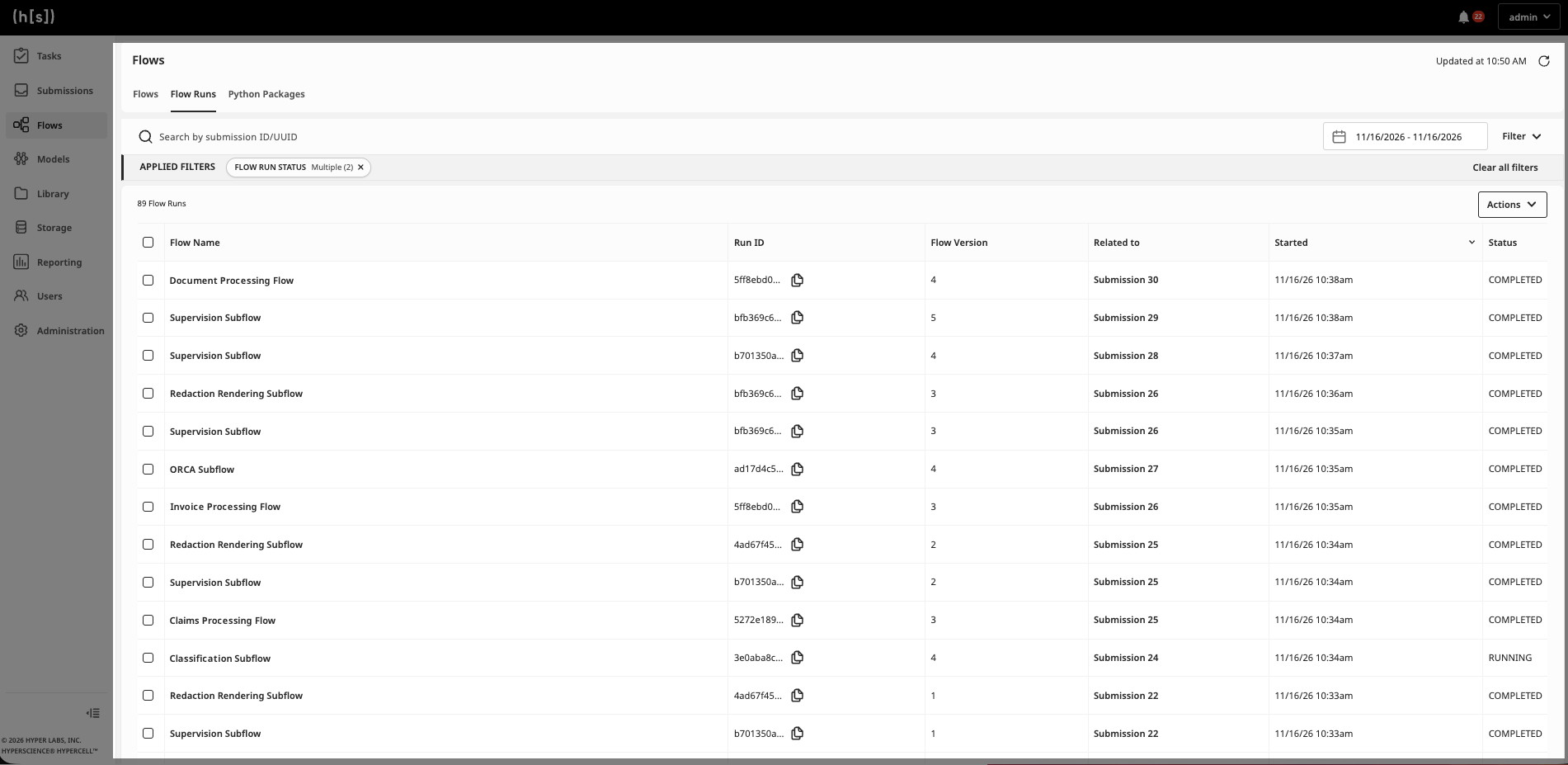
To monitor flow runs and troubleshoot failures, use the Flow Runs tab. For more information, see Flow Runs Page.
Tabs in the Flows section
The Flows section has three tabs: Flows, Flow Runs, and Python Packages. From the Flows tab, you open a top-level flow's details page and, from there, Flow Studio. From the Flow Runs tab, you open the page of each flow run. The tabs and actions that you see depend on your permissions.
Flows tab
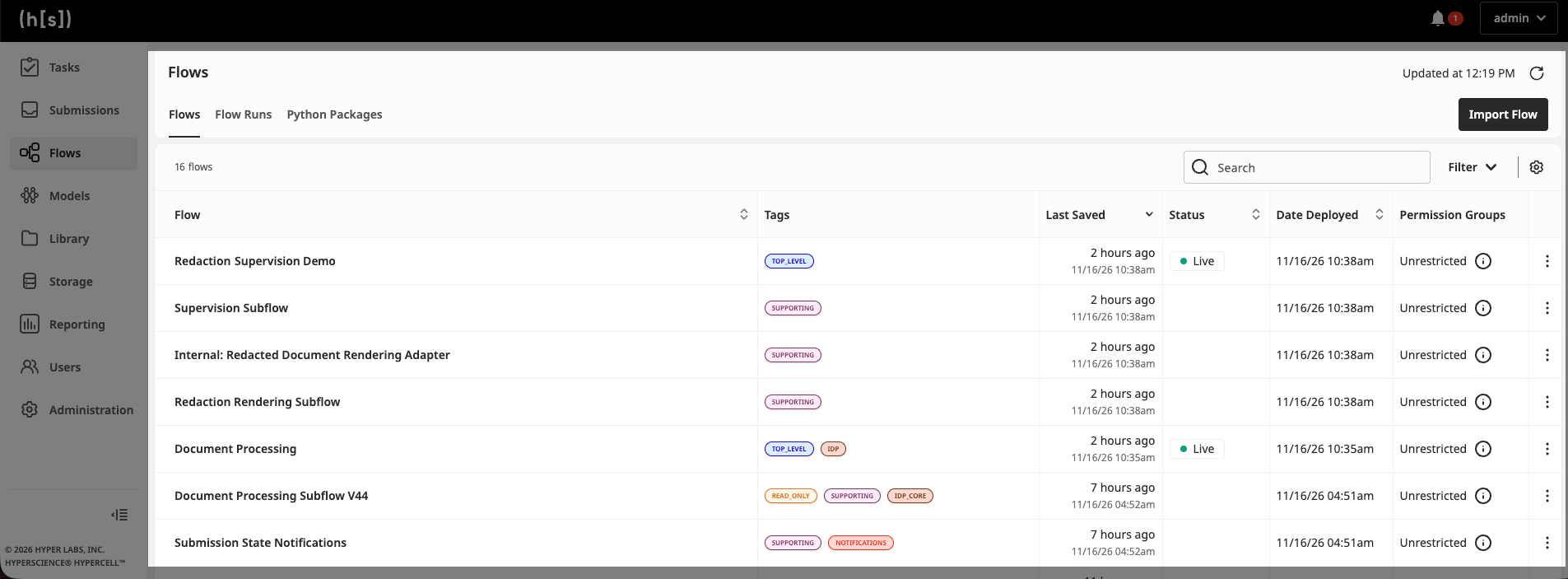
The Flows tab lists all the flows in your instance. Use it to find a flow, check its status, and start an action on it. To open it, go to Flows > Flows.
Each top-level flow is listed with the subflows that it calls.
In v44.1 and later, the Flows table shows filter results and flow UUIDs
The table includes the following changes:
The number of flows that match your filters appears at the top of the table.
The filters that you applied are visible without expanding the filter bar.
A Flow UUID column, hidden by default, helps you distinguish flows that have the same name.
The filter drop-down lists load faster.
Each flow has a status that determines whether it processes submissions:
Status | Meaning |
|---|---|
Live | The flow is deployed and processes the submissions sent to it. |
Disabled | The flow does not accept new submissions. Submissions already in progress continue processing. |
Archived | The flow does not appear in the default list on the Flows tab. When you restore it, it returns with the Disabled status. |
To show archived flows, select Archived Flows from the Flow Status drop-down list.
Flow actions
You can create, edit, run, and remove flows on your own with the following actions. Most of them are in the Flow Actions menu in each flow's row. The actions available depend on the flow's status. To build custom flows or blocks, use the Flows SDK, or file a Support ticket.
Action | Where | What it does |
|---|---|---|
Run | Flow Actions menu, the flow's details page, or Flow Studio | Starts a flow run. Available in v44.1 and later for live flows. See Running a flow from the application. |
Edit | Edit Flows on a top-level flow's details page, or the name of any other flow on the Flows tab | Opens Flow Studio, where you change a flow's settings or blocks. See Editing Flows in Flow Studio. |
Deploy, Disable | Flow Actions menu, or the Status switch on the flow's details page | Starts or stops the processing of new submissions. For a subflow, deploy or disable its top-level flow. See Deploy a flow or flow group and Disable a flow or flow group. |
Duplicate | Flow Actions menu | Creates a copy named "[flow name] (Copy)." Use the copy to build a similar flow or to change a read-only flow. See Duplicate a flow or flow group. |
Archive, Restore | Flow Actions menu | Archive removes a flow that you no longer need. You cannot archive a live flow. Restore returns an archived flow with the Disabled status. See Archive a flow or flow group and Restore an archived flow or flow group. |
Import Flow | Flows tab | Adds a new flow, such as a flow built with the Flows SDK, or updates an existing flow. See Import a flow. |
Export, Export All Flows | Flow Actions menu | Downloads a flow as a ZIP file so that you can move it to another environment. For a top-level flow, Export All Flows includes its subflows. See Export a flow. |
Flow details page
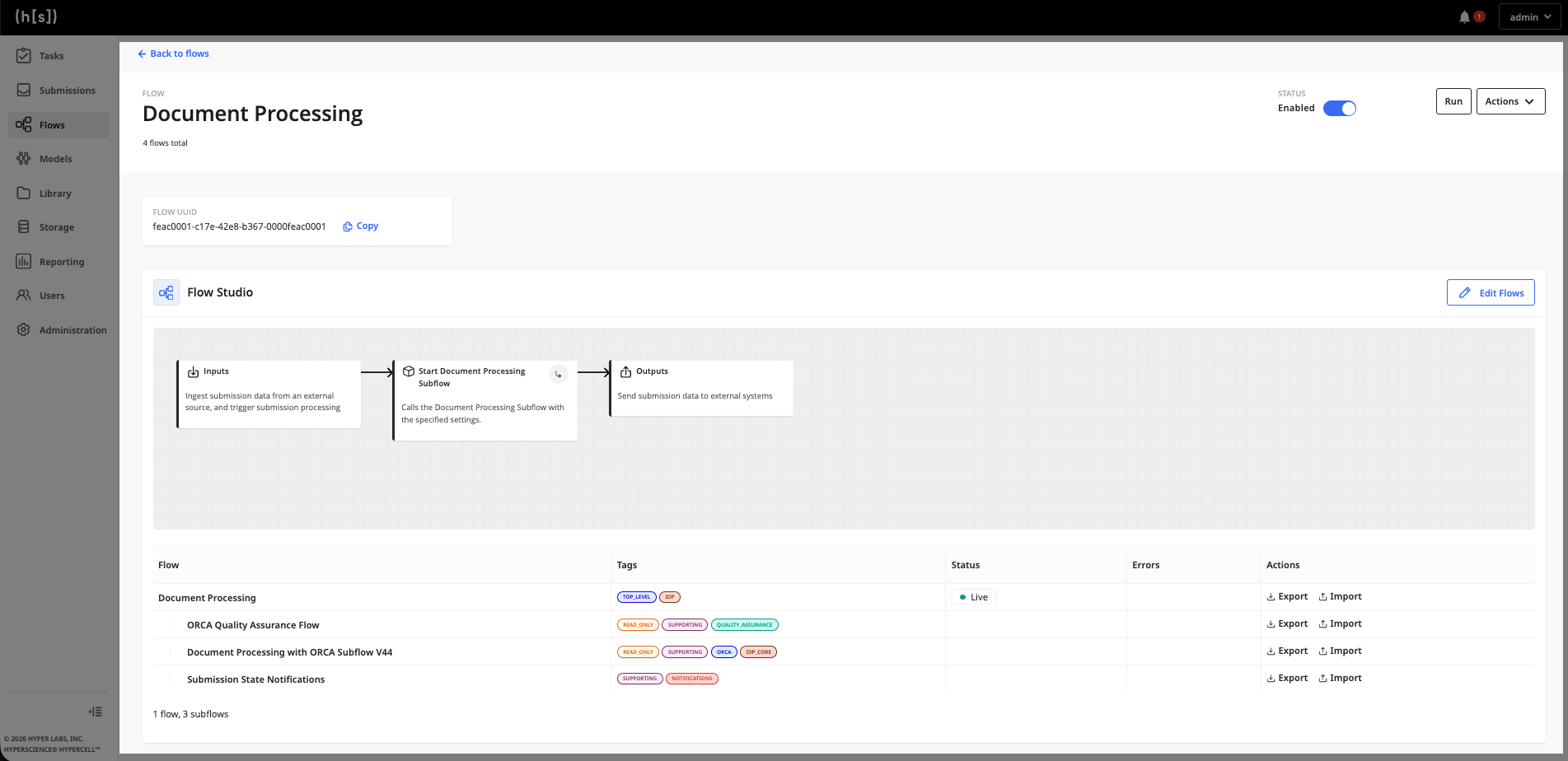
To open a top-level flow's details page, click its name on the Flows tab. The details page shows the top-level flow, its flow diagram, and the flows in its group. From this page, you can do the following:
Open the flow in Flow Studio with Edit Flows.
Deploy or disable the flow with the Status switch.
Export the flow with its subflows, or import a new version of it.
Copy the flow's UUID from the Flow UUID card. For more information, see Flow UUIDs.
Flow Studio
In Flow Studio, you view how a flow is built and change its settings. To open Flow Studio, click Edit Flows on a top-level flow's details page. For any other flow, click its name on the Flows tab.

Flow diagram: The Flow Studio canvas shows the flow's blocks.
Block settings: When you click a block, its settings appear in the sidebar.

Build Mode: Turn on Build Mode to add or delete blocks. For more information, see Editing Flows in Flow Studio.
Run: The Run button is available only when the flow is live and has no unsaved changes.
You cannot change a read-only flow in Flow Studio
To change it, duplicate the flow and change the copy.
Flow Runs tab
The Flow Runs tab lists flow runs so that you can monitor them, inspect their data, and retry failed runs. To open it, go to Flows > Flow Runs. Each flow run has its own page with the run's details. For more information, see Flow Runs Page.
Python Packages tab
The Python Packages tab lists the Python packages that the code in your flows can import. To open it, go to Flows > Python Packages. Depending on your license, this tab might not appear.
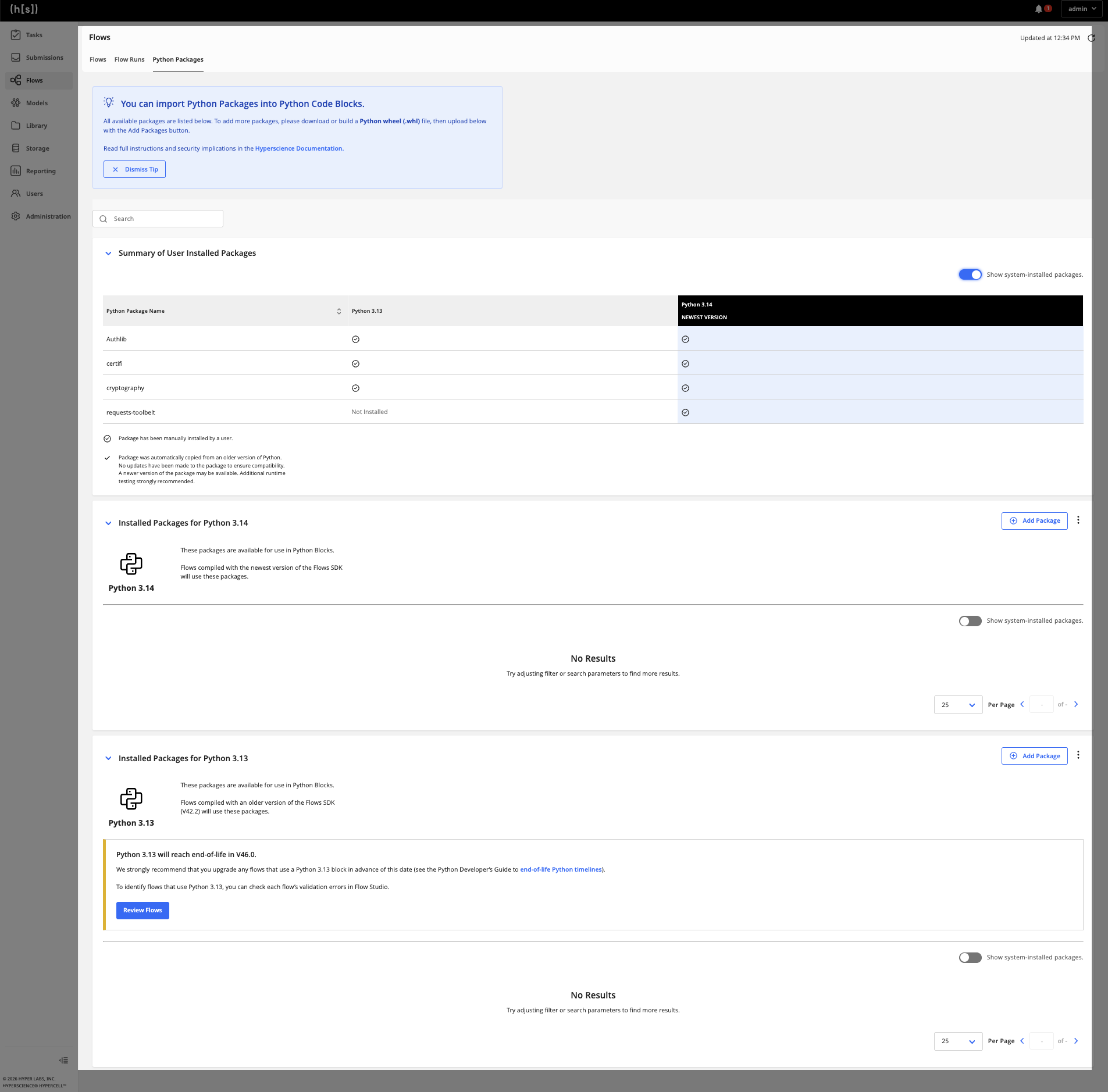
The tab starts with a summary of the packages that users installed, followed by a section for each Python version. To include the packages that come with Hyperscience, turn on Show system-installed packages. From a Python version's section, you can do the following:
Add a package. Click Add Package, and upload a Python wheel (.whl) file.
Download a package, or uninstall a package that a user installed.
Download all user-installed packages, or download the list as a
requirements.txtfile.
The summary marks packages that Hyperscience copied automatically from an older Python version. A newer version of these packages might be available, so test them before you use them. If you cannot add packages, contact your administrator. For more information, see the Flows SDK documentation on Python packages.
Running a flow from the application
Availability
Running a flow from the application is available in v44.1 and later.
With Run, you start a flow from the application. A flow that does not process documents runs without a submission. You can also run a supporting or notification subflow on its own to test it.
Run appears in the Flow Actions menu on the Flows tab, on a flow's details page, and in Flow Studio. The flow must be live.
What happens when you click Run depends on the flow:
Flow | What happens |
|---|---|
A flow with inputs | The Run flow dialog opens. It lists the flow's inputs, prefilled from the flow parameters. Inputs without a value appear first, and the others are in the collapsed Override flow settings section. The values that you change apply to this run only. |
A flow without inputs | A confirmation appears. Click Run to start the run. |
A flow that processes documents | Create Submission opens for that flow. You upload the files, and the flow processes the submission. |
After the run starts, its page opens. If you cannot open the Flow Runs tab, a notification shows the run ID instead.
For the steps, see Run a flow.